Showing posts with label NSM. Show all posts

Tuesday, September 11, 2007

Capturing flow data from your Linksys at home


As a big believer in flow/session data collection in all NIDS locations, it is only right that there be an easy way to do so at home without putting a full-time IDS in place. So with a trusty Linksys router re-flashed with DD-WRT, an extra package installed on the router, and a suite of flow collection/analysis tools on your primary Linux desktop, we can easily achieve this.

On your Linksys:

  1. First things first. In this scenario we re-flashed a Linksys router with DD-WRT, following these instructions.
  2. Next, via the DD-WRT web interface, we enabled JFFS2 support and SSH located in subsections of the Administration tab.
  3. Moving on, update your ipkg configuration, with: ipkg update. Then install fprobe via ipkg: ipkg install fprobe.
  4. Finally, add a shell script to /jffs/etc/config/fprobe.startup. Change permissions: chmod 700 fprobe.startup and reboot your router. The file should contain the following command: fprobe -i br0 -f ip 192.168.1.100:9801
A brief discussion of the fprobe command is needed:

  • -i specifies the interface you are interested in watching flows on. I chose my internal interface.
  • - f specifies a bpf filter. In this scenario, I chose to only create flow records for IP traffic.
  • IP:Port, is the remote IP address and UDP port that you have your flow collector listening on - this will be later on your desktop Linux box.
On your Linux box:

  1. Install flow-tools from here. All that is needed, is a standard: configure; make; make install. *There is one caveat to watch out for, if you use gcc 4.x, a patch available where you downloaded the tarball is necessary.
  2. Create a directory to store your flow data: mkdir -p /data/flows/internal
  3. If you run IPTables or some other host-based firewall, make sure to allow UDP 9801 connections from your router.
  4. Finally, both run the following command and add it somehow to your system startup (via /etc/rc.local, for example): /usr/local/netflow/bin/flow-capture 192.168.1.100/192.168.1.1/9801 -w /data/flows/internal
A brief discussion of the flow-capture command is needed:

  • You specify the network interface you want your collector to listen on, then the address of the flow probe, followed by the UDP port to use - all in a local/remote/UDP format.
  • -w specifies to write out flow files to that directory. By default, flow-capture will have new ones for every 15 minute chunk of time.
So now that we have some flow data being collected to your machine, what are some cool things we can do with it? Looking in flow-tools default install directory for binaries, /usr/local/netflow/bin, we see numerous flow-* tools. We'll look at a few briefly below.

Using flow-print:

flow-print < ft-v05.2007-09-11.080001-0400

The above command will print out the results contained in that particular flow file. The columns will contain srcIP/dstIP/protocol/srcPort/dstPort/octets/packets. The octets line is the equivalent of bytes. This is your standard session/flow data.

Adding a "-f 1" flag will produce timestamps among other things. The -f flag allows for numerous types of formatting and additional columns, etc.

On a sidenote, standard *nix tools - such as awk and grep can be very useful in pulling data from plain old dumps of the flow records.

Using flow-cat and flow-stat:

Much like Argus, with flow-tools you stack together various of the utilities to get output like you want.

flow-cat ft-v05.2007-09-11.0* | flow-stat -f9 -S2

In the above set of commands, flow-cat is used to concatenate all the files that names match that criteria. The resulting output is passed to flow-stat for crunching and displaying. The flow-stat command generates reports, taking formatting options via the -f flag and sorting on both -S and -s. Our example specified a report format on the Source IP address, and sorting based on the Octet (ie. Bytes) field (have a look at the man page for flow-stat to see all the various options). Thus, we now have detailed output from all those files, showing the *noisiest* source hosts listed by most bytes transferred.

Utilizing your desktop and a router, things you probably already have at home, you too can watch/collect/analyze flow data to keep a watchful eye on your network - without deploying a dedicated NIDS or NSM sensor.

Saturday, June 23, 2007

How NSM Saved Christmas

Introduction

'Twas the night before Christmas....well...not exactly. This is a real-world account of how I used open source tools and the foundation of Network Security Monitoring to save my chances of attending the company Christmas party. It was a few years ago in the middle of December when the incident that follows occurred, only but a couple hours before I was set to attend the party. Luckily, the practices of NSM were already in place, trimming down the time needed and stress endured considerably, while scoping the extent of the damage.

For those not familiar with the concept of NSM, I highly recommend the blog and books of Richard Bejtlich, security guru and NSM evangelist. The basic principle that NSM boils down to, is to not rely on a single point of network data for detecting and responding to your intrusions. So instead of collecting only alert data from your IDS, you supplement this alert data, with session or flow data, full content, and potentially statistical data.

In the scenario that follows, NSM was employed using various open source tools, including Sguil, Snort and SANCP. If you have never used Sguil before, you are in for a treat - as it ties together the Snort alerts, with corresponding SANCP session data and another Snort instance capturing full content data.

The First Hint

"CHAT IRC channel join", those four words is how it all began. Normally, a Snort alert of that nature would not have caused me much concern - mainly, since many co-workers and myself used IRC on a daily basis. The source IP address, however, made it all the more frightening. It happened to be a Debian FTP server we had in our DMZ, which would have absolutely no reason to be running an IRC client legitimately. Could it be an employee that was doing work on the server, deciding to install an IRC client on it and connect from there? Or, was it something more sinister, like that of a compromised Linux box joining a botnet?

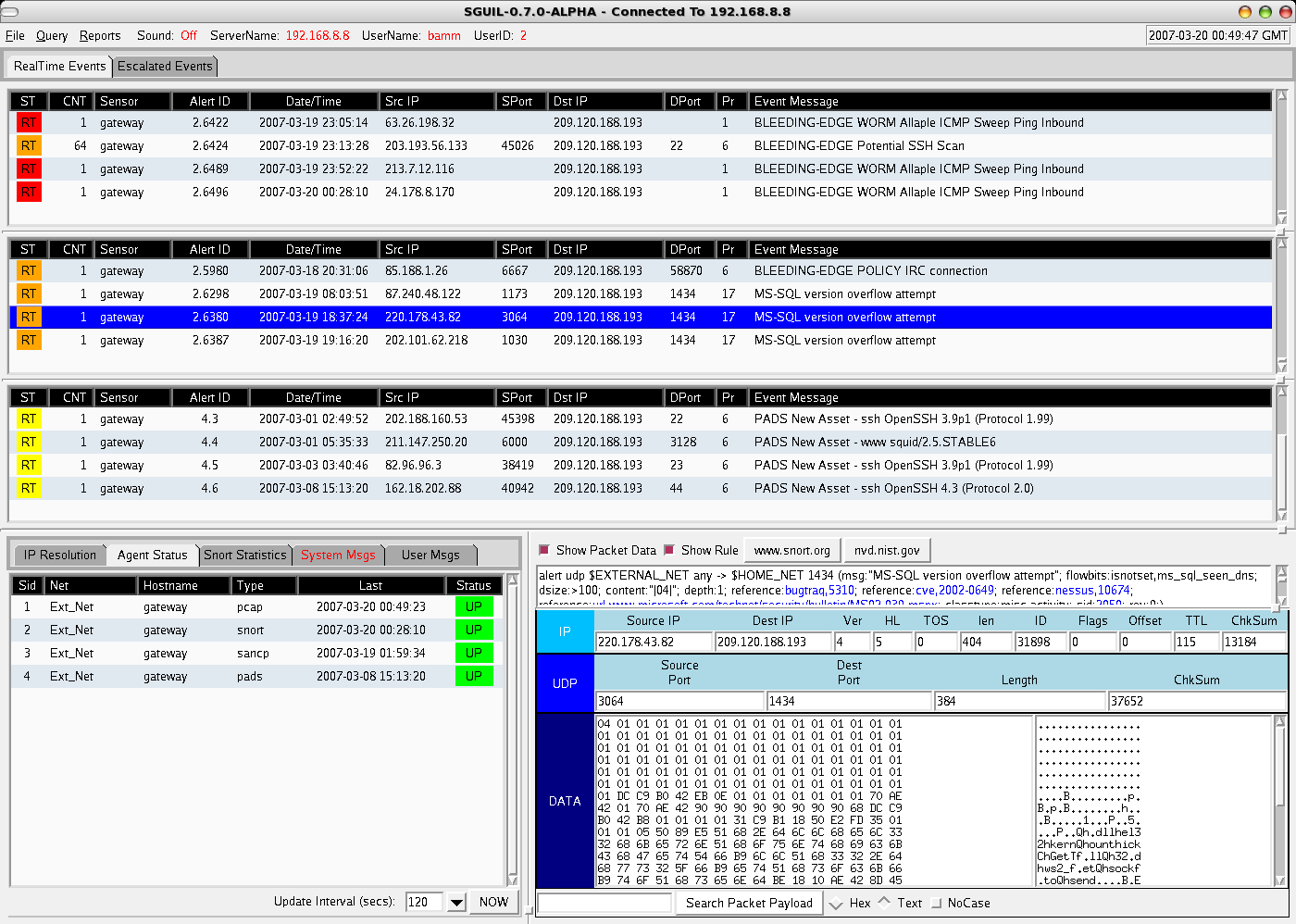
The first thing that led me initially away from it being an insider doing something they should not be, was in the packet payload - viewable via Sguil from the Snort alert data collected (a sample Sguil packet view of a generic alert is shown here on the main Sguil site). A random jumble of characters for the nick used to log onto the IRC server, this is seeming stranger by the minute. Why would someone that worked here use a random character string and join a channel that did not make any more sense than the nick? From knowledge of working on the FTP server recently, I knew that there was a limited exposed attack surface, only TCP ports 21 for FTP and 22 for SSH were listening.

In an all too common occurrence when an IDS is deployed, our investigation without touching the server in question would most likely be over. Sure, we could have been collecting logs centrally or had some sort of host IDS installed, but using network sensors that were collecting various data, allowed us to solve this from a 3rd party point of view at the network level. Luckily for us, we had NSM already in place, so in addition to the Snort alert we saw, we were able to dig deeper into the session (ie. flow) data and full content data to further analyze what exactly was taking place.

Tracking Down the Compromise

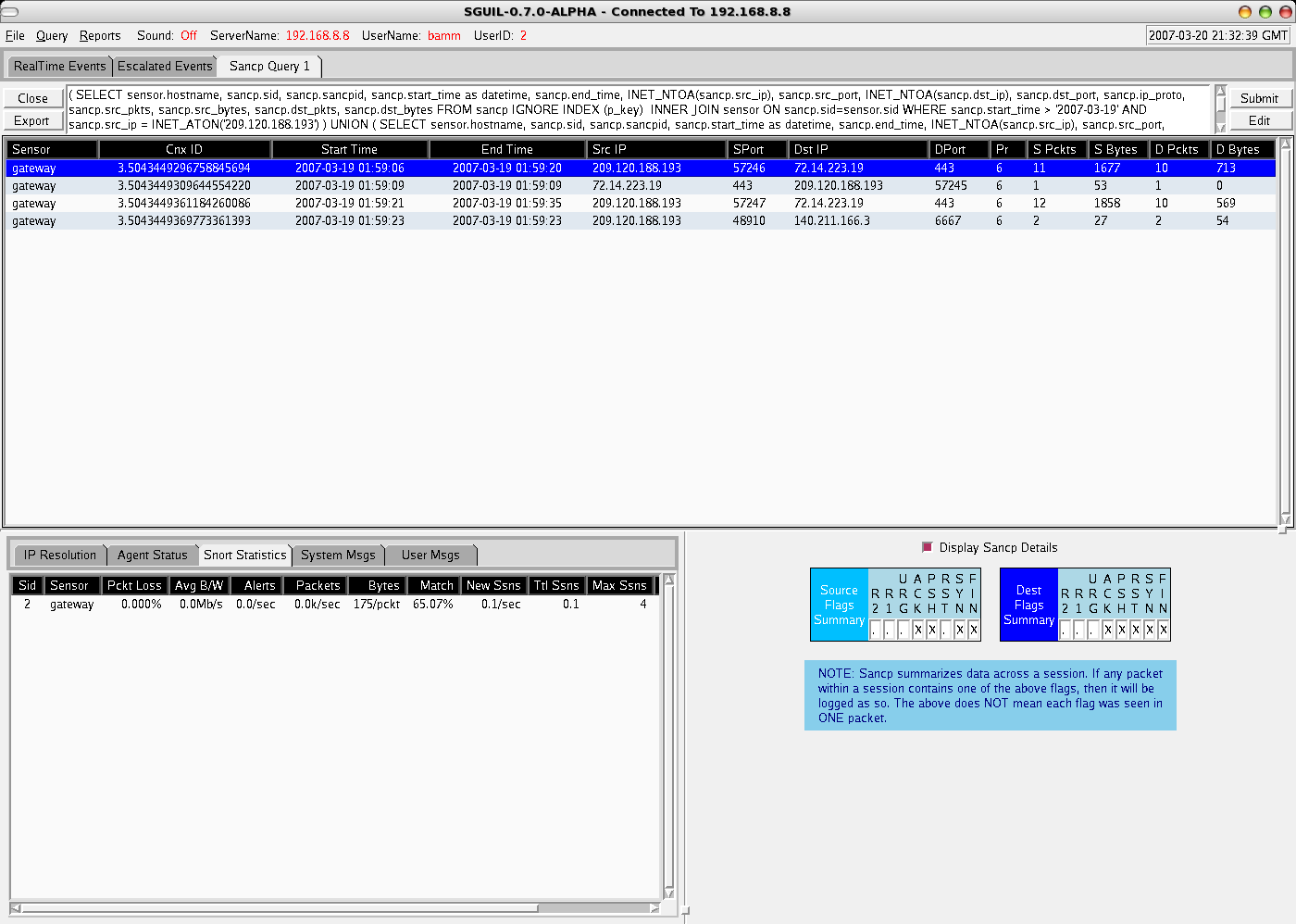
So where did I go from here? Well...I first decided to query for any Snort alerts, on both the source and destination IP addresses for the last week - nothing of any use came back. The next step was to pull any session/flow SANCP data from Sguil's database of all connections in the last week involving our victim machine. Sguil's SANCP view, looks like this sample from the Sguil website, and includes data formatted with the following headers:

Start Time End Time SrcIP SPort DstIP DPort SBytes DBytes

From the SANCP data returned, we could see numerous connections from external addresses with very little data being exchanged to tcp port 22 of our victim machine, especially from the destination side (this is classic of SSH brute force attempts, and confirmed from central logs from the victim host). The real interesting flow results, were the sudden stop of excessive SSH connections, followed by a connection to an external FTP server and a public IRC server! Now we are getting somewhere!!

One of the best things of working with Sguil, is that we can right-click any SANCP session and request the full-content data related to it (either in full capture view via Wireshark or output in a transcript window if an ASCII-based protocol, such as HTTP, SMTP, FTP, etc) . Within a traditional Sguil setup, you have a separate instance of Snort constantly recording pcap data to hourly files, which Sguil then applies the appropriate BPFs to get the correct data requested by the analyst using the Sguil client.

With full-content data at our disposal, we immediately requested the transcripts of the IRC and FTP sessions (a sample generic transcript screenshot can be seen here from the main Sguil site). Within the FTP transcripts we notice various tarballs being downloaded (with names of not any popular software), which ironically, can be fully regenerated from the full-content data we have collected with open source tools - but that is a topic for another post. Furthermore, the IRC transcripts confirm our earlier IDS alert that suggested the victim host had in fact joined up to the popular Freenode IRC network, joining both an obscure channel and with an equally obscure nick. Forensics performed later on a copy of the hard disk showed a custom IRC client with various "enhanced" drone abilities.

So what did we learn here? As you can see, having full content data made diagnosing the issue at hand, extremely easy. But what if you don't have full content data or all the communication had been encrypted?? That is why the flow data is so important. Even eliminating the full-content analysis we did above, we were still able to find out various important things just from SANCP flow data, enough to get a sense of what had happened, including:

1. Noticing plenty of source-heavy, quick SSH connections from external addresses - implicating SSH brute force attempts to login against an account.

2. A sudden stop in the rapid SSH connections, followed by an FTP connection to an external IP address and pulling substantial amounts of data to the victim system.

3. Connection to IRC, from a machine that shouldn't be.

Scoping the Extent of the Incident

The final step before taking this machine out of service, to both be forensically analyzed and rebuilt from known good sources, was to scope the extent of the damage.

Once again, we turned to the flow data in Sguil provided by SANCP. The following steps gave that "warm, fuzzy feeling" that we were okay:

1. Lookups across the SANCP database table that involved any communication from all external IP addresses involved. This included, the original SSH brute force scanner, which also happened to be the box they logged into SSH with once successfully cracking a password. Also the FTP server the tools were grabbed from and IRC server they connected to. Nothing beyond the time frame and machines we had already been investigating gave cause for alarm.

2. The victim machine, our Debian FTP server in the DMZ, had its IP address searched across all of the SANCP data available as well - with importance placed on connections both 72 hours prior to the successful compromise and anything thereafter. With importance this time placed on looking for such things as attacks on other DMZ hosts of ours in the same accessible subnet, to scanning of external hosts on strange ports.

3. Finally, a search across the SANCP table for other hosts in the same DMZ subnet. Looking for any protocols used or communications that appeared out of the norm.

Having centralized logs, HIDS, rootkit checkers, etc. are an ideal situation to compliment network based evidence, but if given the choice, a properly deployed NSM sensor is my first course of action when responding to intrusions. Just utilizing our NSM tools, we determined what happened to the machine, what it did, and scoped the extent of the intrusion.

After finishing our network-based analysis, we had a look at our central log server. The syslog data confirmed, shortly after the brute force attacks, and at the same time as the network data showed the last bits of SSH communication - a successful login on an unprivileged account. The files downloaded via FTP to /tmp, which included the custom IRC bot client, all with permissions and ownership of this compromised, unprivileged account. A successful grinding of a weak user account password over SSH had been the way in, with the common post-attack scenario of it being joined to a botnet army of drones, the result.

Conclusion

Hopefully this article has sparked an interest in enabling your IDS sensors to do more, and provide you with a broad way of investigating incidents. Once you move away from the alert-only mentality of a traditional IDS, you will find even more value in the data that tools like Sguil provide. For more information on NSM and the various tools that can be used, I point you again to Richard Bejtlich's books and the Sguil/NSM wiki.

* All of the network forensics (ie. non-local), were completed in only a couple of hours, leaving plenty of time to have fun at the Christmas party!

Basic Pig usage to process Argus data

Some quick notes on testing out Pig in local mode to process some basic Argus data. Argus Capture a sampling of network traffic with Argus a...